Installation
Requirements
The following are software and hardware requirements for DODDLE-OWL.
OS: Operating System running Java
Memory: 1GB or higher
HDD: 1GB or higher
Display Resolution: XGA(1024×768)
Acknowledgements
DODDLE-OWL uses the following libraries. Since these libraries are included in DODDLE-OWL, users don’t have to get the libraries.
FlatLaf * A modern open-source cross-platform Look and Feel for Java Swing desktop applications. * License: Apache License 2.0
-
A library for RDF, RDFS, and OWL
License: Apache License 2.0
-
An easy to use and self-contained Japanese morphological analyzer.
License: Apache License 2.0
-
A Java API for creating, reading and updating dictionaries in WordNet format.
License: BSD
-
An API for parsing command-line options passed to an application.
License: Apache License 2.0
-
The Java API for Microsoft Documents.
License: Apache License 2.0
-
An open source Java tool for working with PDF documents.
License: Apache License 2.0
-
A java library that automatically plugs into your editor and build tools, spicing up your java
License: The MIT License
-
JDBC Driver for SQLite
License: Apache License 2.0
-
A statistical parser
License: GPL (GNU General Public License)
Material Design icons by Google
Free icon set
License: Apache License 2.0.
Optional Software
DODDLE-OWL uses the following software optionally.
Warning
Since Beta 6, MeCab and CaboCha only support UTF-8.
As of November 2008, the latest versions of MeCab and CaboCha support UTF-8. (For Windows, select “UTF-8” as the dictionary character code during installation. For Unix and Mac, specify –with-charset=utf8 as a configure option.)
In order to extract Japanese compound words, Perl, Chasen (or MeCab), and CaboCha are required.
In order to extract English compound words, Perl is required.
In order to use EDR dictionary (EDR general vocaburary dictionary or EDR technical terminology dictionary) as general ontologies, EDR are required. You need to change EDR into a format for DODDLE using EDR2DODDLE_DIC_Converter.
Reference Ontologies
English General Ontology
Japanese General Ontologies
How to install
Windows
Download doddle-owl-26.5.1.msi from the download page and execute the file.
macOS
Download doddle-owl-26.5.1.dmg from the download page and extract the file to any directory.
How to uninstall
Remove the extracted folder.
How to execute
Execute DODDLE-OWL.exe or DODDLE-OWL.app file.
Configurations
Configurations can be set in the Option Dialog in DODDLE-OWL.
Option Dialog: Basic Tab
Language
You can display the menu in English or Japanese by specifying “en” or “ja”.
Base prefix
You can set the prefix for concepts defined by the user.
Base URI
You can set the base URI for the ontology when saving it.
Option Dialog: Folder Tab
Project folder
Default path: C:/DODDLE-OWL/DODDLEProject
You can set the folder where project files are saved. This folder will be the starting point when saving or restoring projects.
Stop word list
Default path: C:/DODDLE-OWL/stop_word_list.txt
You can set the file that contains the list of words to be ignored during term extraction.
EDR dic folder
Default path: C:/DODDLE-OWL/EDR_DIC
You can set the folder where the text data of the EDR general dictionary converted for DODDLE is stored.
EDRT dic folder
Default path: C:/DODDLE-OWL/EDRT_DIC
You can set the folder where the text data of the EDR technical dictionary converted for DODDLE is stored.
Japanese morphological analyzer
Default path: C:/Program Files/ChaSen/chasen.exe
This is required when using the compound word extraction module. (chasen21 is not supported)
Japanese dependency parser
Default path: C:/Program Files/CaboCha/bin/cabocha.exe
This is required when extracting compound words.
perl.exe
Default path: C:/Perl/bin/perl.exe
This is required when using TermExtract.
Upper concept list
Default path: C:/DODDLE-OWL/upperConceptList.txt
You can set the list of upper concepts. This is used to check if a word is a subclass of a specified concept in the EDR.
How to use EDR dictionary as general ontologies
To refer to the EDR Electronic Dictionary as a general-purpose ontology in DODDLE-OWL, the text data of the dictionary must be converted into a format compatible with DODDLE-OWL. The following section describes the procedure for this conversion.
The time required to convert the EDR General Dictionary and EDR Technical Dictionary into a format compatible with DODDLE-OWL, using an iMac with a 4GHz Intel Core i7 processor and 32GB of RAM, is as follows:
EDR general vocaburary dictionary: about 3 minutes
EDR technical terminology dictionary: about 40 seconds
Requirements
More than 1GB of RAM (Recommendation 2GB)
EDR general vocaburary dictionary or EDR technical terminology dictionary
EDR general vocaburary dictionary
Copy CPC.DIC, CPH.DIC, CPT.DIC, EWD.DIC, and JWD.DIC to any directory (e.g. C:/EDR_Text/).
Select “DODDLE Dic Converter” sub menu in Tool menu. Then, a dialog is shown. (Fig. 1)
Select “EDR” as Dictionary Type. Check “Text” as Conversion Type.
Set path for Input Dictionary Path and Output Dictionary Path (EDR Dic Folder).
Click Convert Button. Then, concept.data, relation.data, tree.data, word.data, concept.index, relation.index, tree.index, and word.index are generated in EDR Dic Folder.
Set path for EDR Dic Folder in the Option Dialog.
EDR technical terminology dictionary
Copy TCPC.DIC, TCPH.DIC, TEWD.DIC, and TJWD.DIC to any directory (e.g. C:/EDRT_Text/).
Select “DODDLE Dic Converter” sub menu in Tool menu. Then, a dialog is shown. (Fig. 1)
Select “EDRT” as Dictionary Type. Check “Text” as Conversion Type.
Set path for Input Dictionary Path and Output Dictionary Path (EDRT Dic Folder).
Click Convert Button. Then, concept.data, tree.data, word.data, concept.index, tree.index, and word.index are generated in EDRT Dic Folder.
Set path for EDRT Dic Folder using Option Dialog.
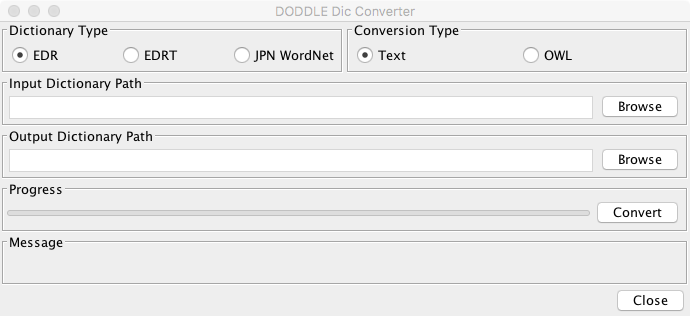
Fig. 1 DODDLE_Dic_Converter